Automatic Speech Recognition
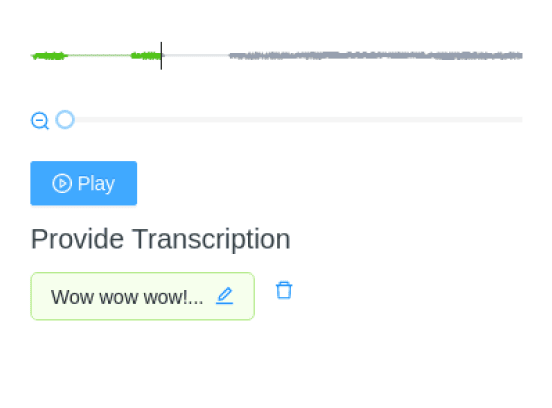
Listen to an audio file and transcribe its content in natural language, performing speech recognition.
Enterprise
If you're managing more complex or high-volume audio labeling projects, Label Studio Enterprise includes an advanced audio transcription interface built to support faster, more precise annotation at scale.
See our new Multi-Channel Audio Transcription template and learn more in A New Audio Transcription UI for Speed and Quality at Scale (blog post).
Interactive Template Preview
Labeling Configuration
<View>
  <Audio name="audio" value="$audio" zoom="true" hotkey="ctrl+enter" />
  <Header value="Provide Transcription" />
  <TextArea name="transcription" toName="audio" rows="4" editable="true" maxSubmissions="1" />
</View>
About the labeling configuration
All labeling configurations must be wrapped in View tags.
Use the Audio object tag with the hotkey argument to allow annotators to play back audio on the labeling interface using a specific hotkey, and use the zoom="true" argument to allow annotators to zoom in on the audio wave:
<Audio name="audio" value="$audio" zoom="true" hotkey="ctrl+enter" />You can add a header to provide instructions to the annotator:
<Header value="Provide Transcription" />Use the TextArea control tag to prompt annotators to add a transcript for the audio:
<TextArea name="transcription" toName="audio" rows="4" editable="true" maxSubmissions="1" />The rows="4" argument lets you configure the size of the text box visible on the labeling interface. The maxSubmissions="1" argument limits the maximum number of transcripts submitted by an annotator for the audio clip to one, while the editable="true" argument allows annotators to edit the transcript.